I wanted to know whether a 20-billion-parameter image model would actually run on a laptop, so I put Qwen-Image-2512 on an M5 MacBook Pro with 32 GB of unified memory and generated images until the fans spun up. The short version: it runs.
It's also slow, and 32 GB turns out to be exactly the awkward amount of memory — enough to load a quantized model, not enough to stop thinking about memory the whole time. Here's the setup that worked, the settings that matter, and what the speed honestly feels like.
What you're actually running
Qwen-Image is a 20B-parameter MMDiT (Multimodal Diffusion Transformer) text-to-image model from Alibaba's Tongyi Lab, released open-source under Apache 2.0. The backbone is paired with a frozen Qwen2.5-VL multimodal LLM as the text encoder, which is where the model's headline trick comes from: it renders readable text inside images far better than most open models. The technical report is arXiv 2508.02324.
One thing to get straight before you read other write-ups: the diffusion model is 20B, not 2.5B. Some posts quote "2.5 billion" because they're confusing the image model with the Qwen2.5-VL encoder bolted onto it. The 20B figure is the one that matches the ~41 GB of full-precision weights you'll actually download.
2512 is the December 31, 2025 refresh of the family — more realistic people, finer textures, better text layout. It's a dated checkpoint, so keep "Qwen-Image" (the family) and "Qwen-Image-2512" (this specific build) separate in your head; the model IDs differ.
The memory math is the whole story
Apple Silicon shares one pool of unified memory between CPU and GPU. There's no separate VRAM to spill into — your 32 GB is the OS, your apps, the Python runtime, and the model, all at once.
Full BF16 weights are about 40.9 GB. That doesn't fit in 32 GB. Full stop. So on this machine the realistic path is a quantized GGUF, and the quant you pick decides whether you have breathing room or you're swapping to SSD the whole session.
| Quant | Size | Fits comfortably in 32 GB? |
|---|---|---|
| Q2_K | 7.22 GB | Yes, lots of headroom |
| Q3_K_M | 9.74 GB | Yes |
| Q4_K_M | 13.1 GB | Yes — good quality/size balance |
| Q6_K | 16.8 GB | Tight but workable |
| Q8_0 | 21.8 GB | Risky alongside the OS + runtime |
| BF16 / F16 | 40.9 GB | No |
Unsloth's rule of thumb: your combined memory should comfortably exceed the GGUF file size. On 32 GB, Q4_K_M (~13.1 GB) is the sweet spot — close to BF16 quality while leaving room for the encoder, the OS, and the activations during a run. If you want more margin, drop to Q3.
Setup — the path I used
I followed Unsloth's Qwen-Image-2512 tutorial, which runs the model through ComfyUI with the GGUF custom node. On a Mac it's roughly:
python3 -m venv qwen && source qwen/bin/activate
git clone https://github.com/Comfy-Org/ComfyUI && cd ComfyUI
pip install -r requirements.txt
# GGUF loader node
git clone https://github.com/city96/ComfyUI-GGUF custom_nodes/ComfyUI-GGUF
pip install -r custom_nodes/ComfyUI-GGUF/requirements.txt
# drop your chosen .gguf into models/ then:
python main.py
Put the Q4_K_M GGUF in the model folder, load the 2512 workflow, and go. Unsloth notes that Apple/CPU build steps are "similar" to CUDA but offers no Mac-specific tuning — so expect to fill in the MPS gaps yourself.
If you'd rather skip ComfyUI entirely, qwen-image-mps is purpose-built for Mac and is the quickest way to a first image:
pip install qwen-image-mps
qwen-image-mps generate -p "a photograph of a red bicycle" -s 50
qwen-image-mps generate -p "..." -f      # Lightning LoRA, 8 steps
qwen-image-mps generate -p "..." -uf     # Lightning LoRA, 4 steps
It auto-selects MPS, runs in bfloat16, and keeps the RNG on CPU for stability. First run pulls the weights to ~/.cache/huggingface/hub/models--Qwen--Qwen-Image-2512.
| Tool | Best for | Install | Notes |
|---|---|---|---|
| Unsloth GGUF + ComfyUI | Quant control, node workflows | clone + GGUF node | Most knobs; not Mac-tuned out of the box |
qwen-image-mps |
Fastest path on a Mac | pip install qwen-image-mps |
MPS auto, Lightning flags built in |
| HF Diffusers | Full programmatic control | pip install diffusers |
Set device to mps; most manual |
Settings that move the needle
| Setting | What I'd use | Why |
|---|---|---|
| Steps | 40 for quality, 20 for tests, 4–8 with Lightning LoRA | Steps are the single biggest cost on a slow machine |
| Shift | 12–13 | Tuned for 2512 quality per the Unsloth guide |
| Resolution | ~1.6 MP (1024×1024) | Native 1328×1328 adds ~50% runtime |
true_cfg_scale |
4.0 | Diffusers default for the base model |
| Prompt wording | the word "photograph" | Beats "photorealistic"/"3d render" for realism |
| Negative prompt | natural language, not keyword spam | The model responds to sentences, not tag soup |
Lightning LoRA is the lever that makes local generation tolerable on a constrained Mac. In ComfyUI you load it as a model-only LoRA in the graph — the LightX2V repo ships 4-step and 8-step Qwen-Image LoRAs, including a 2512 variant — then drop steps to 4–8 and, critically, set CFG to 1.0, because the distilled LoRA produces garbage if you leave classifier-free guidance on.
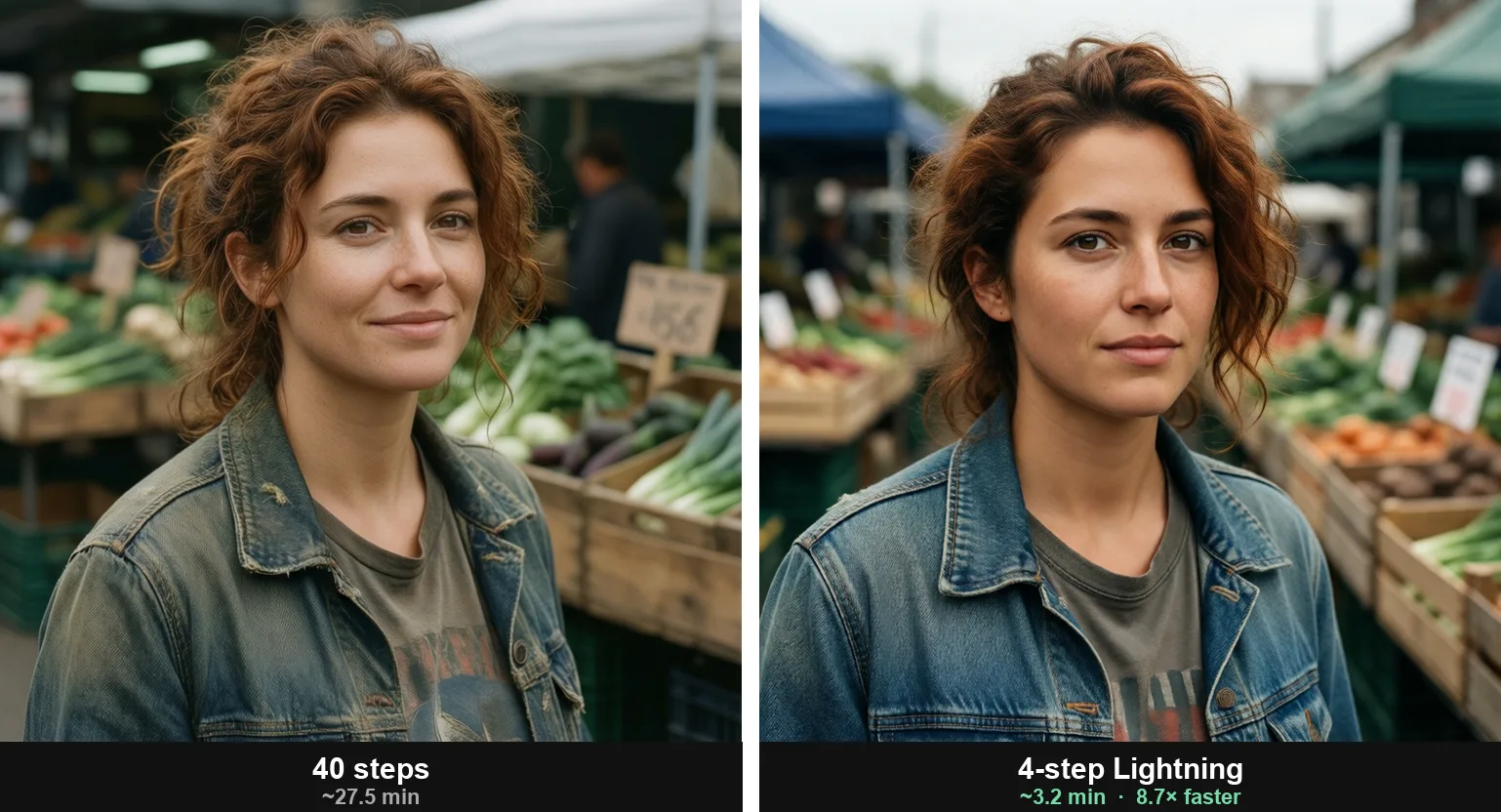
That cuts the wait by roughly an order of magnitude (real numbers below).
What the speed actually feels like on 32 GB
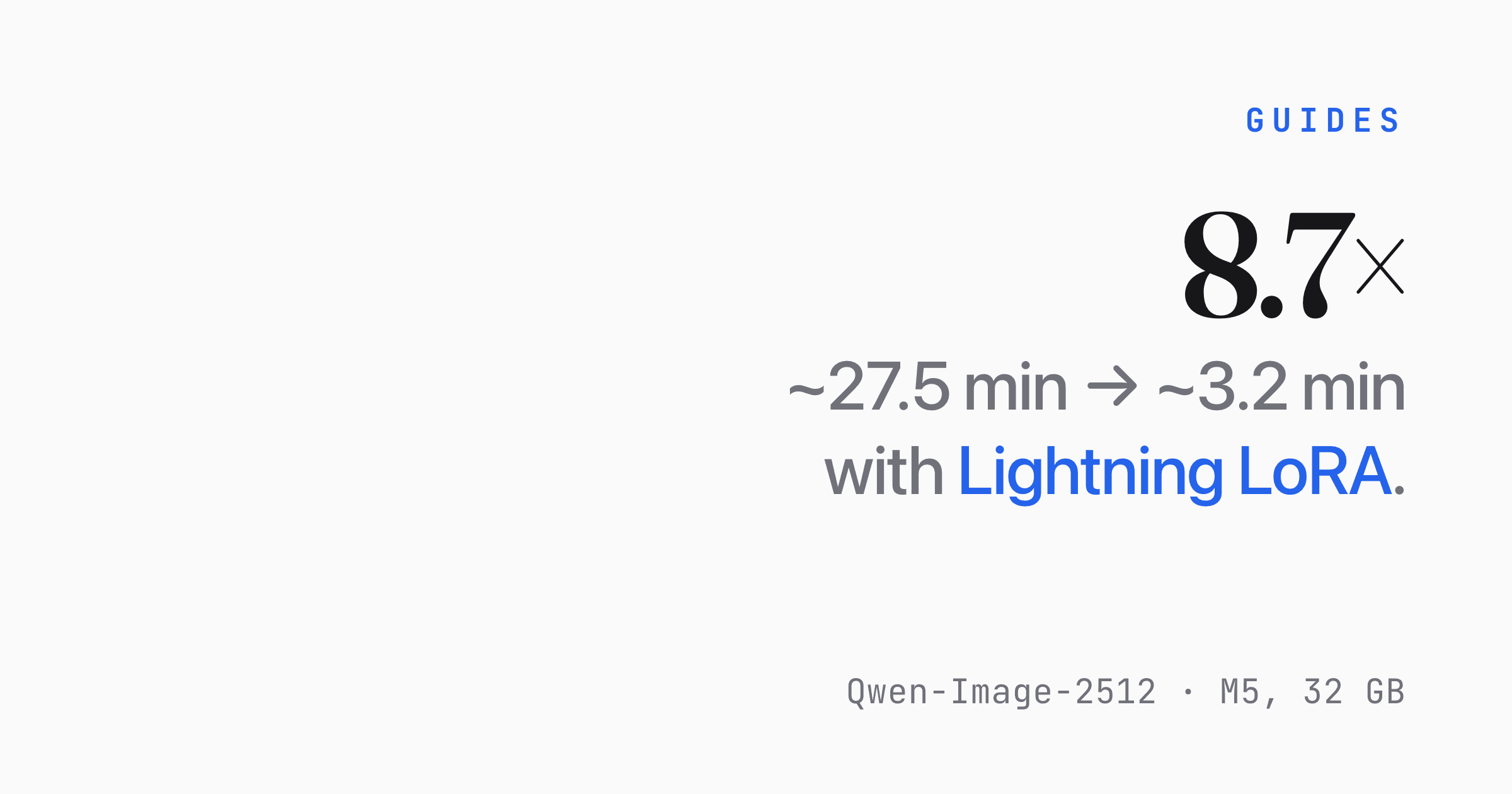
Here are the real numbers from this machine — M5 MacBook Pro, 32 GB unified memory, macOS 26.2 — running Q4_K_M GGUF at 1024×1024 in ComfyUI:
| Run | Per step | Total per image |
|---|---|---|
| 40 steps (full quality) | ~40.6 s/step | ~27.5 minutes |
| 4-step Lightning LoRA | ~37.1 s/step | ~3.2 minutes |
Two things stand out. First, Lightning is an 8.7× speedup end-to-end: a 1024×1024 image that took twenty-seven and a half minutes at 40 steps came down to about three minutes at 4 steps. Second, and less obvious — the per-step time barely moved (37 vs 40 seconds). Lightning doesn't make each step cheaper; it slashes the number of steps.
On this hardware a single diffusion step costs roughly 40 seconds whether you run 4 of them or 40, so anything that cuts the step count is the whole game.
Quality held up better than I expected. For a photographic portrait, the 4-step Lightning result was hard to tell apart from the 40-step one — no obvious smearing, plastic skin, or lost detail. Where Lightning tends to fray is text-heavy prompts (signage, posters), so treat 4-step as "great for photos, double-check it for typography."
On memory: with the Q4_K_M model (~12.7 GB) and the Qwen2.5-VL text encoder (~7.5 GB) both resident, the generation stack alone sat north of 20 GB. With a normal set of apps open on top, the machine stayed under memory pressure and leaned on swap — exactly where the 32 GB ceiling bites.
It's usable; it isn't comfortable, and you feel the ceiling the whole session.
For context from other hardware (borrowed, not mine): Ivan Fioravanti reported a Qwen-Image generation dropping from about 9 minutes to roughly 42 seconds total with the Lightning LoRA on an M3 Ultra — a desktop-class chip with far more memory. Same pattern: Lightning is the lever, and more unified memory mostly buys headroom rather than dramatically faster steps.
Gotchas
On macOS 26 (Tahoe), ComfyUI can crash on the first run with TypeError: '<' not supported between instances of 'NoneType' and 'tuple' deep in should_use_bf16, while loading the VAE. The cause is that platform.mac_ver() returns an empty string on macOS 26, so ComfyUI's mac_version() returns None and a version comparison blows up.
Until it's fixed upstream, edit comfy/model_management.py so mac_version() falls back to sw_vers -productVersion when platform.mac_ver()[0] is empty — that gave back a real version (26.2) and the crash disappeared.
You'll also see Can't find mmproj file ... Qwen-Image-Edit will be broken! followed by a wall of clip missing: visual.* lines. Ignore them for text-to-image. That's the vision tower of the Qwen2.5-VL encoder, which only matters for Qwen-Image-Edit (where you feed it an input image). Plain prompt-to-image never touches those weights, and generation runs fine.
If the console prints "Using CPU" on Apple Silicon, your PyTorch build is missing MPS or Python is running under Rosetta. Verify you're on native arm64 Python with an MPS-enabled PyTorch — otherwise you're generating on the CPU and wondering why a single image takes forever.
Plan for disk, too. The full BF16 weights are ~41 GB and even a Q4_K_M is ~13 GB, plus the text encoder cache. First run downloads everything and is noticeably slower than steady-state generation, so don't judge speed from the first image.
Verdict
Running Qwen-Image-2512 locally on a 32 GB Mac makes sense if you want privacy, offline generation, or just like tinkering with the stack — and if you accept that "fast" means Lightning LoRA at 4–8 steps, not 40. If you need a steady stream of high-step, high-res images, a hosted endpoint will be cheaper in time and far less fiddly.
The 32 GB machine gets you in the door; it doesn't make you comfortable once you're inside.