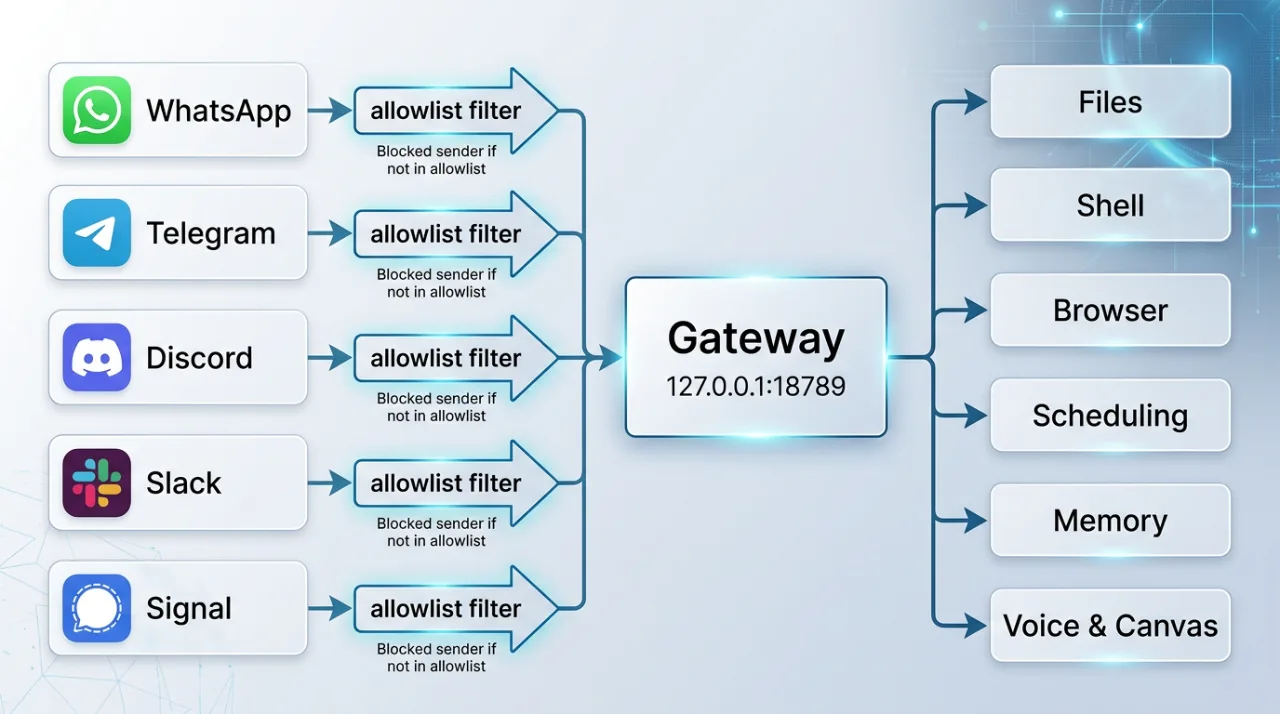
OpenClaw is an open-source AI assistant you run yourself, on your own machine, and talk to through chat apps you already use — Telegram, WhatsApp, Discord, Slack, Signal, and a couple dozen others. The pitch on the homepage is blunt: "the AI that really does things." It reads and writes files, runs shell commands, drives a browser, and can fire off scheduled jobs.
That power is the whole point, and also the reason to set it up carefully.
This guide covers what it is, what you need, and how to get from nothing to a working assistant that answers a message. A warning up front: OpenClaw uses calendar versioning, ships fast, and command names have shifted between releases. Everything here is pinned to v2026.6.10 (June 24, 2026); v2026.7.1 is current as of publication.
Check the Releases page for whatever you actually install, because the number will have moved by the time you read this.
What it actually is
Strip away the lobster branding and OpenClaw is a long-running local service — the docs call it a "gateway" — that sits between your chat apps and an AI agent with real access to your computer. A message comes in from WhatsApp, the agent decides what to do, and it can act: edit a file, run a command, pull a webpage.
It's written in TypeScript, runs on Node.js, and is MIT-licensed. Your API keys stay on your machine, and by default everything runs locally — nothing is routed through a vendor's cloud unless you point it there.
It was started by Peter Steinberger (the PSPDFKit founder) and grew into a large community project. Steinberger joined OpenAI in February 2026; the project is now stewarded by the non-profit OpenClaw Foundation. If you stumble across older tutorials calling it "Clawdbot" or "Moltbot," that's the same software.
Anthropic asked for the first rename in late January 2026 over the "Clawd"/"Claude" name clash: Clawdbot became Moltbot on January 27, and Moltbot became OpenClaw on January 30. Same codebase, three names in one week.
Here's the short version of what it can do:
| Capability | What that means |
|---|---|
| Files | Reads and writes files on your machine |
| Shell | Runs commands and executes scripts |
| Browser | Navigates pages, fills forms, extracts data |
| Scheduling | Cron-style jobs and scheduled tasks |
| Memory & persona | Remembers context; behavior shaped by workspace files (AGENTS.md, SOUL.md, IDENTITY.md, USER.md, and a memory/ directory) |
| Voice & Canvas | Push-to-talk and a live "Canvas," with companion apps |
Tool conventions live in the Tools section of AGENTS.md — there's no separate TOOLS.md in the workspace.
Because it executes real shell commands, treat it like a user account on your machine, not a chat toy. More on locking it down below.
What you need first
- A Mac, Windows, or Linux machine you're comfortable leaving running.
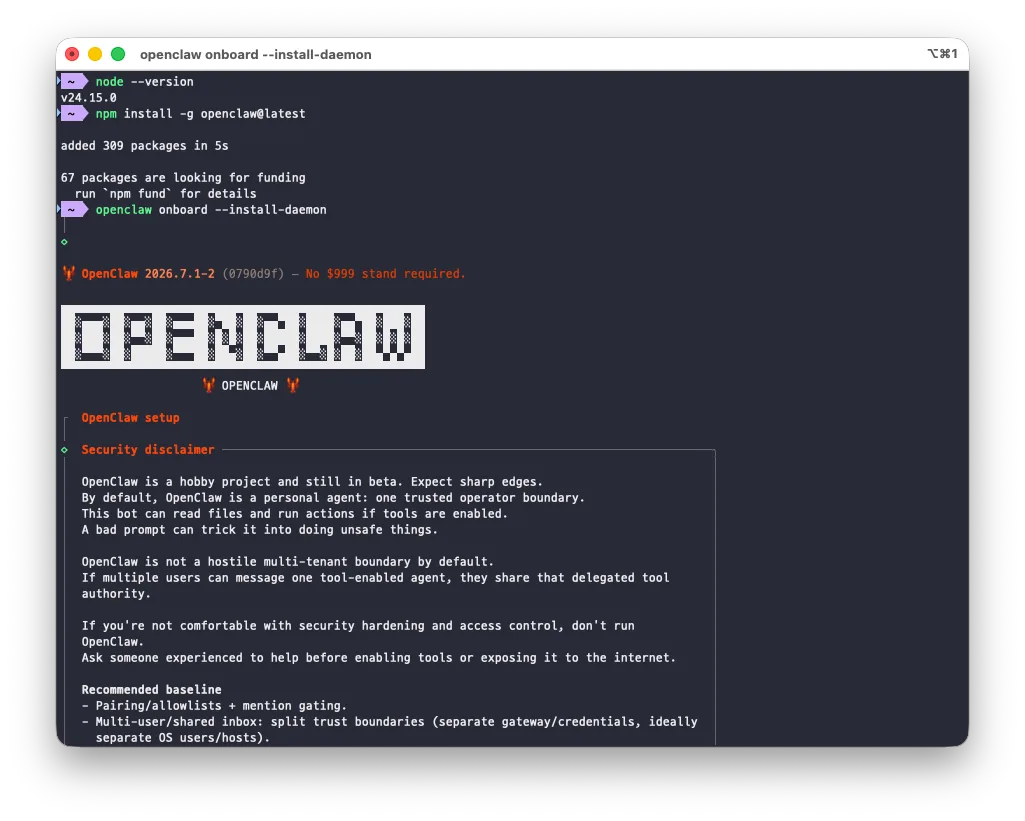
- Node 26 (recommended) — or Node 22.22.3+, 24.15+, or 25.9+. Node 23 is not supported. Check with
node --version. - An API key from a model provider — Anthropic or OpenAI — or a local model if you'd rather keep everything offline. The official advice is to "prefer a current flagship model from the provider you trust and already use."
- For messaging channels like WhatsApp or Telegram, a dedicated or second number is strongly recommended. The assistant logs in as you, and you don't want it tangled with your personal account.
Install it
There are two documented paths. The npm route, if you already have Node set up:
npm install -g openclaw@latest
Or the one-line installer from the homepage:
curl -fsSL https://openclaw.ai/install.sh | bash
Piping a script straight into bash runs remote code on your machine. If that makes you uneasy — it reasonably should — open the URL in a browser and read it first, then run it.
Run the onboarding wizard
OpenClaw does the heavy lifting through an interactive setup. From the docs' getting-started flow:
openclaw onboard
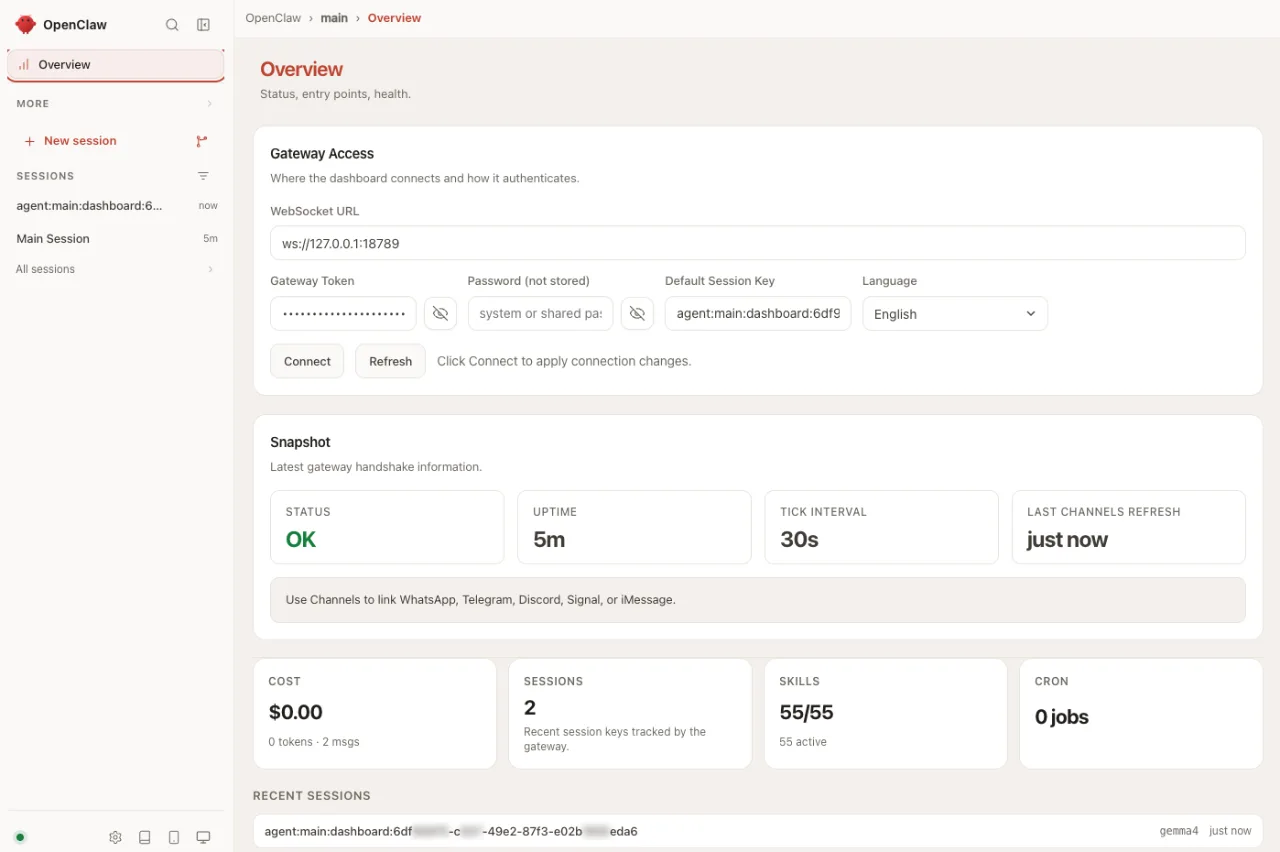
This walks you through the gateway, your workspace directory, which chat channels to wire up, and any starter skills. Once it's done, open the local dashboard:
openclaw dashboard
It serves at http://127.0.0.1:18789/ — a local web UI for watching the gateway, channels, and agent runs. Note that the getting-started docs also show the gateway started directly (openclaw gateway --port 18789) or the workspace scaffolded with openclaw setup. Commands vary across versions, so trust the docs for the build you installed rather than any single tutorial — including this one.
Connect a chat channel
WhatsApp is a common first channel. Logging in pairs your account via a QR code, same as WhatsApp Web:
openclaw channels login
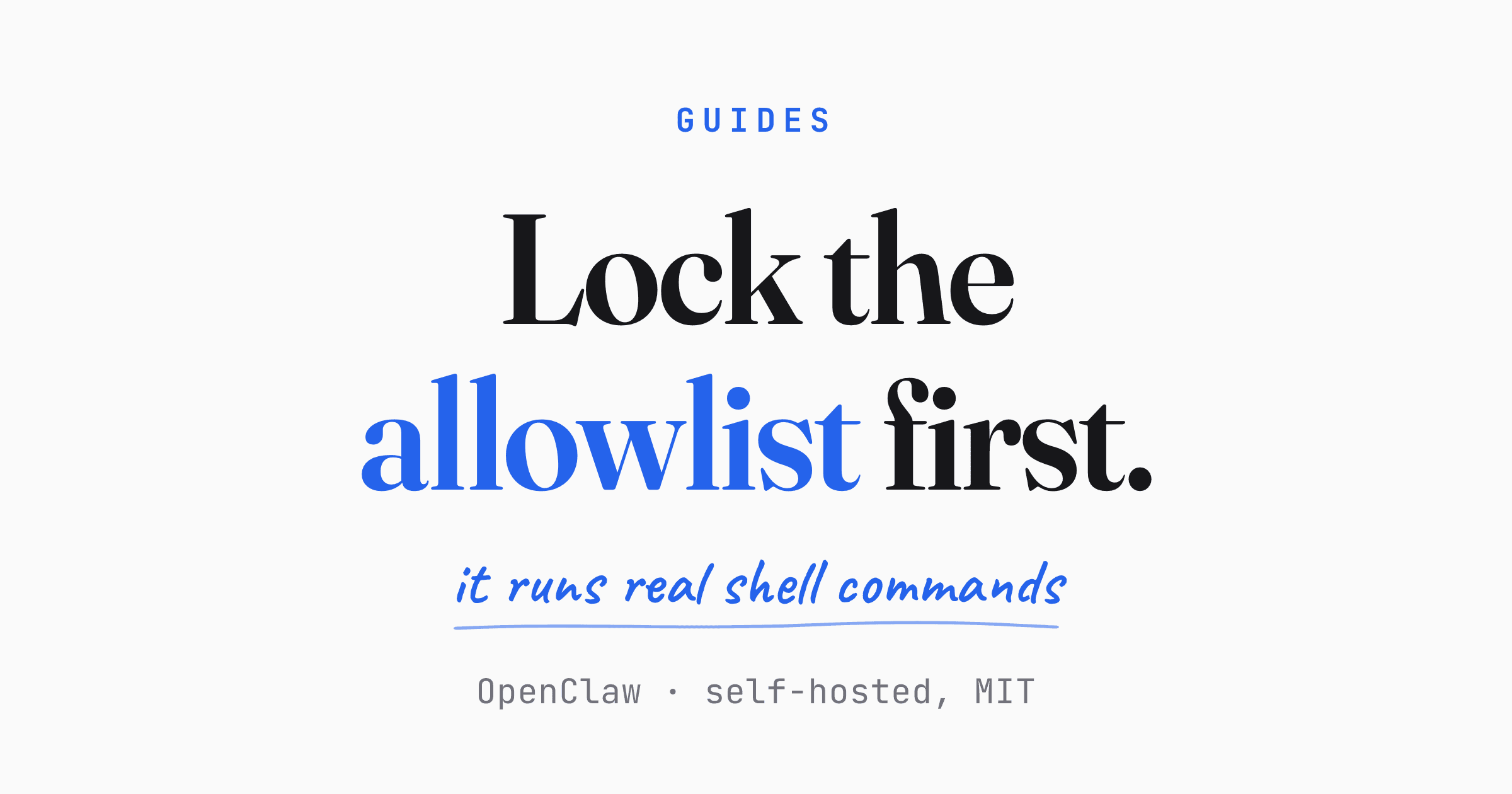
The single most important step after pairing is locking down who can talk to it. Without an allowlist, anyone who messages the number can drive an agent that runs shell commands on your box. Set an allowlist in your config at ~/.openclaw/openclaw.json:
{
  "channels": {
    "whatsapp": {
      "allowFrom": ["+1234567890"]
    }
  }
}
In group chats, require an explicit mention so the bot only responds when addressed. The two-number pattern from the docs — your personal number plus a dedicated one for the assistant — keeps the two worlds separate.
Pick your model
You set the model in config and bring your own key. Roughly:
{
  "agents": {
    "defaults": {
      "model": { "primary": "anthropic/claude-..." }
    }
  }
}
Model IDs change as providers ship new versions, so grab the current identifier from the docs rather than copying one from a blog post. Recent release notes mention routing support for newer models including GLM-5.2.
Verify it's running
Check the gateway and send yourself a test message:
openclaw gateway status
openclaw message send --channel whatsapp --target +1234567890 --message "Hello from OpenClaw"
You can also poke the agent directly without a channel. Use the one-shot exec form:
openclaw agent exec "What can you do?"
Plain openclaw agent won't run on its own — the docs are explicit: "Pass at least one session selector: --to, --session-key, --session-id, or --agent." For a quick headless check, agent exec is the shortcut that skips all of that.
If the gateway reports healthy and the test message lands, you're up.
Skills and ClawHub — and a real warning
A skill is a text-defined agent ability: a SKILL.md file plus any supporting files. ClawHub (clawhub.ai) is the public registry where people publish and search them — it held over 10,700 as of February 2026, by Koi Security's count.
Now the part that matters. ClawHub is open by default — for a stretch, the only barrier to publishing was a GitHub account at least a week old. Predictably, it got abused. In early February 2026, security researchers found large numbers of malicious skills, many posing as crypto-trading tools using names like ByBit and Polymarket.
Counts ranged from 341 in Koi Security's first audit of 2,857 skills to 824 on their February 16 rescan; Snyk separately reported 1,467 malicious payloads. They were built to steal exchange API keys, wallet private keys, SSH credentials, and browser passwords — exactly the secrets an agent with shell access can reach.
ClawHub now runs automated scans on published releases and surfaces the latest scan state on each skill page — check it before installing. Beyond that: install only skills you trust, from publishers you recognize, and read what a skill does before you enable it. A skill is code running with your assistant's permissions.
Sensible defaults to leave in place
- Keep channel allowlists on, and require a mention in group chats.
- Run only trusted skills; review the source before enabling.
- Keep the gateway on your own machine — don't expose port 18789 to the open internet.
- Watch the Releases page; fixes and security patches land often.
From here, the official docs and the getting-started guide are the ground truth for your version. Set up one channel, lock the allowlist, send a test message, then add capabilities one at a time once you trust what it's doing.