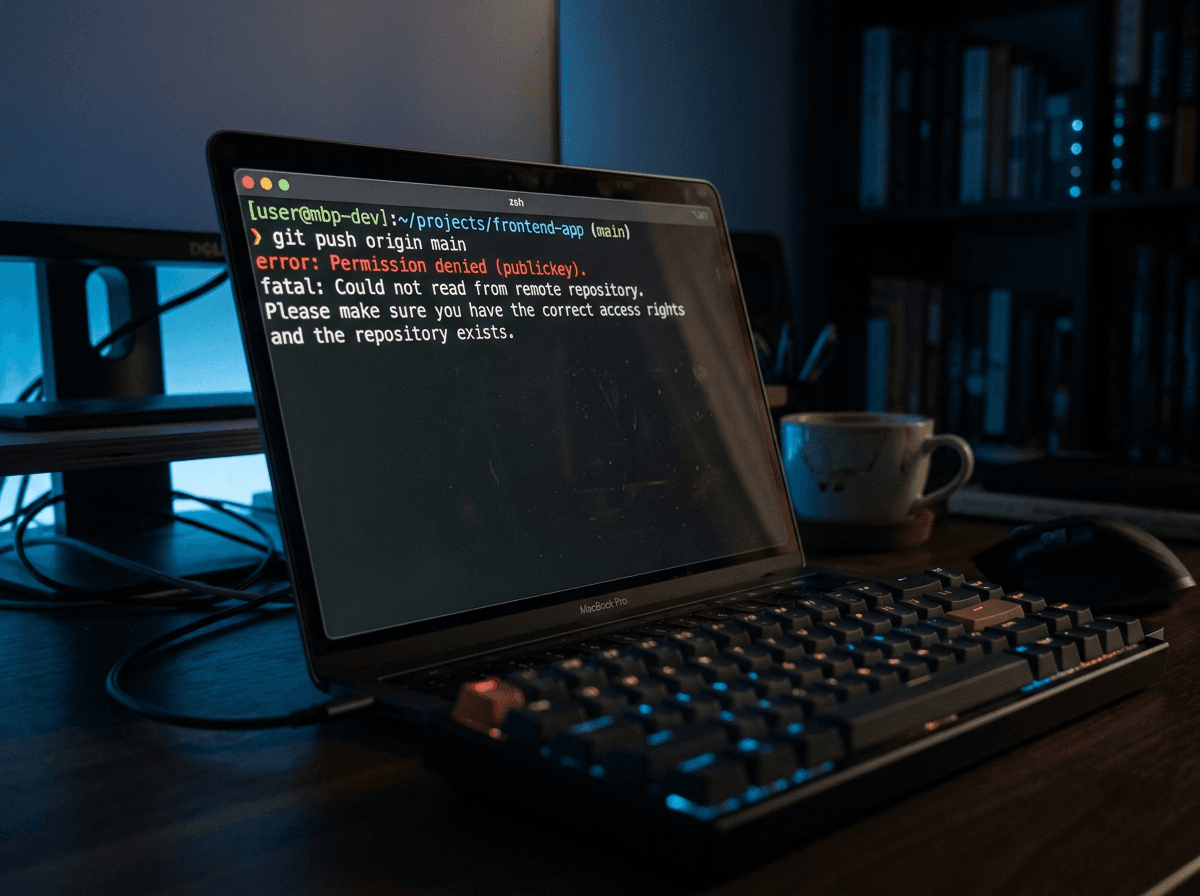
You ran git push and got this:
git@github.com: Permission denied (publickey).
fatal: Could not read from remote repository.
This is an authentication failure, not a network or repo-access problem. The server accepted the TCP connection fine — it just couldn't verify who you are, because SSH never presented a key it recognizes. Everything below is about getting the right key offered and accepted. Work through it in order; most people are fixed by step 3 or 4.
Read the verbose output first
Before changing anything, ask SSH what's actually happening:
ssh -vT git@github.com
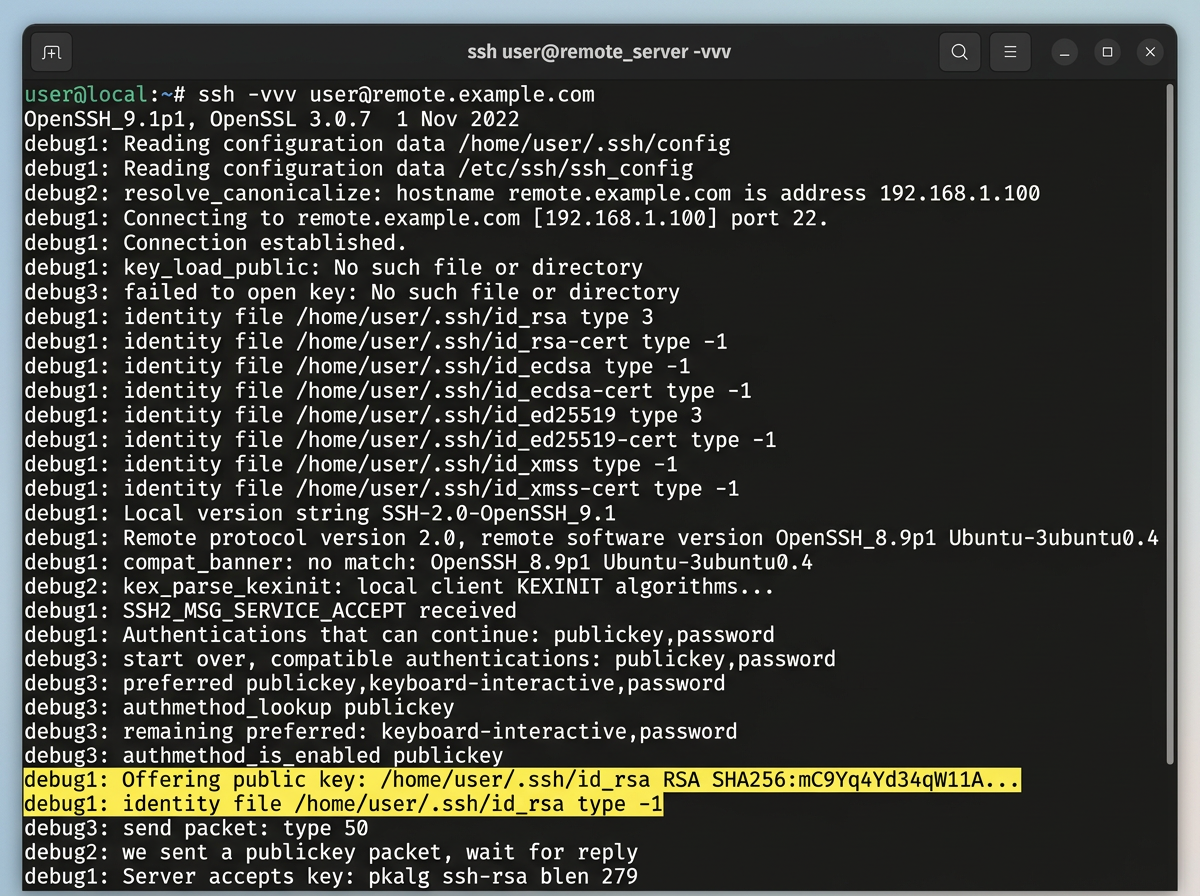
The -v flag prints every step of the handshake. You don't need to understand all of it — just two things:
- Lines like
Trying private key: /Users/you/.ssh/id_ed25519followed by nothing, and anidentity file ... type -1, mean SSH found no usable key to offer. The-1means the file doesn't exist. - A line like
Offering public key: ...means a key is being sent. If the connection still fails after that, the key either isn't on your account or it's the wrong key.
Success looks like this:
Hi USERNAME! You've successfully authenticated, but GitHub does not provide shell access.
That message is normal — GitHub doesn't give you a shell, it just confirms the key works. If you see it, your SSH auth is fine and the problem is somewhere else (wrong remote URL, mostly — jump to the remote-URL section).
Check that a key exists and is loaded
Two commands tell you whether you even have a key, and whether the agent is holding it:
ls -al ~/.ssh                 # look for id_ed25519 and id_ed25519.pub (or id_rsa)
ssh-add -l -E sha256          # fingerprints currently loaded in the agent
If ssh-add -l prints The agent has no identities, the agent isn't holding your key. Start it and add the key:
eval "$(ssh-agent -s)"
ssh-add ~/.ssh/id_ed25519
If ls ~/.ssh shows no id_* files at all, you don't have a key yet. Make one.
Generate a key if you don't have one
Ed25519 is GitHub's recommended type for all new keys. Use it unless you're on an old system that genuinely can't handle it:
ssh-keygen -t ed25519 -C "your_email@example.com"
Only fall back to RSA (ssh-keygen -t rsa -b 4096) on legacy systems without Ed25519 support. Accept the default file location, set a passphrase if you want one, and then load it with ssh-add as shown above.
Add the public key to your account
This is the single most common cause. Generating a key does nothing on its own — GitHub has to know about the public half.
cat ~/.ssh/id_ed25519.pub # copy this — the .pub file, never the private one
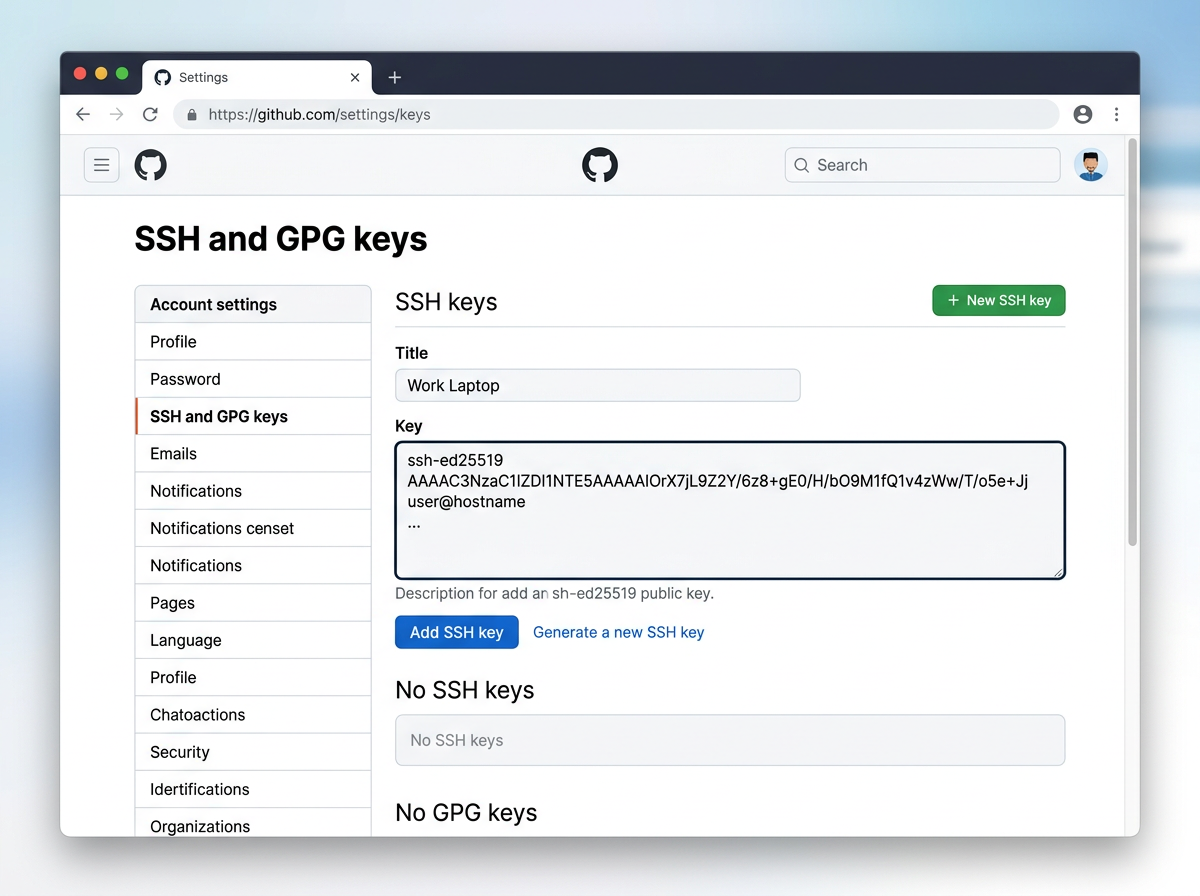
Paste it into GitHub under Settings → SSH and GPG keys → New SSH key. The private key (the file without .pub) never leaves your machine.
To be sure you added the right key, compare fingerprints. Run ssh-add -l -E sha256 and look at the SHA256 string for your loaded key, then check it against the fingerprint GitHub shows next to the key in settings. If your loaded key's fingerprint isn't on the account, that mismatch is your bug.
Fix the remote URL and the git user
Every SSH connection to GitHub is made as the git user — not your username. The remote should look like git@github.com:OWNER/REPO.git. A frequent trap is cloning over HTTPS and then expecting SSH auth to kick in (or the reverse).
Check what you have, and switch it if needed:
git remote -v
git remote set-url origin git@github.com:OWNER/REPO.git
One more thing worth ruling out: don't run Git with sudo. Under sudo the agent and ~/.ssh belong to a different user, so your key is invisible and you get the same error.
Fix file permissions
SSH silently ignores private keys whose files are readable by others — no warning, just a refusal to use the key. If the basics look right but the key still isn't offered, tighten the modes:
chmod 700 ~/.ssh
chmod 600 ~/.ssh/id_ed25519        # private key
chmod 644 ~/.ssh/id_ed25519.pub    # public key
Pin the right key with an SSH config
When you have several keys, SSH may offer the wrong one and give up before reaching yours. Force the choice in ~/.ssh/config:
Host github.com
  HostName github.com
  User git
  IdentityFile ~/.ssh/id_ed25519
  IdentitiesOnly yes
IdentitiesOnly yes is the important line — it stops SSH from trying every key it can find and offering them in the wrong order.
On macOS, you can also keep the passphrase in the Keychain so you don't retype it and the key loads automatically:
Host *
  AddKeysToAgent yes
  UseKeychain yes
Then add the key with the Apple flag:
ssh-add --apple-use-keychain ~/.ssh/id_ed25519
--apple-use-keychain and --apple-load-keychain replaced the old -K and -A flags in macOS 12 Monterey. UseKeychain is Apple's own option and isn't part of upstream OpenSSH, so don't copy it onto a Linux box.
Port 22 blocked? Go over 443
Corporate and campus networks often block outbound port 22, so SSH never reaches GitHub at all. Test whether the HTTPS port works:
ssh -T -p 443 git@ssh.github.com
Note the host: it's ssh.github.com, not github.com. If that authenticates, make it permanent in ~/.ssh/config:
Host github.com
  Hostname ssh.github.com
  Port 443
  User git
After this, your normal git@github.com:... remotes route over 443 without any further changes.
Symptom → fix
Symptom (from ssh -vT) |
Cause | Fix |
|---|---|---|
type -1, no key offered |
No key file exists | ssh-keygen -t ed25519 |
| Key file exists, agent empty | Key not loaded | ssh-add ~/.ssh/id_ed25519 |
Offering public key then denied |
Key not on account | Add .pub in GitHub settings |
| Auth works but push fails | Wrong remote URL / not git user |
git remote set-url origin git@github.com:... |
| Key ignored, no warning | Permissions too open | chmod 600 the private key |
| Connection times out | Port 22 blocked | Use ssh.github.com port 443 |
Other hosts
GitLab and Bitbucket throw the exact same Permission denied (publickey) message, and the logic is identical — only the place you paste the key and the test host change. For GitLab, test with ssh -T git@gitlab.com.
On Windows, OpenSSH runs the agent as a service rather than something you start by hand. Use Get-Service ssh-agent and Start-Service ssh-agent in PowerShell, and rely on Windows ACLs instead of chmod for key permissions.