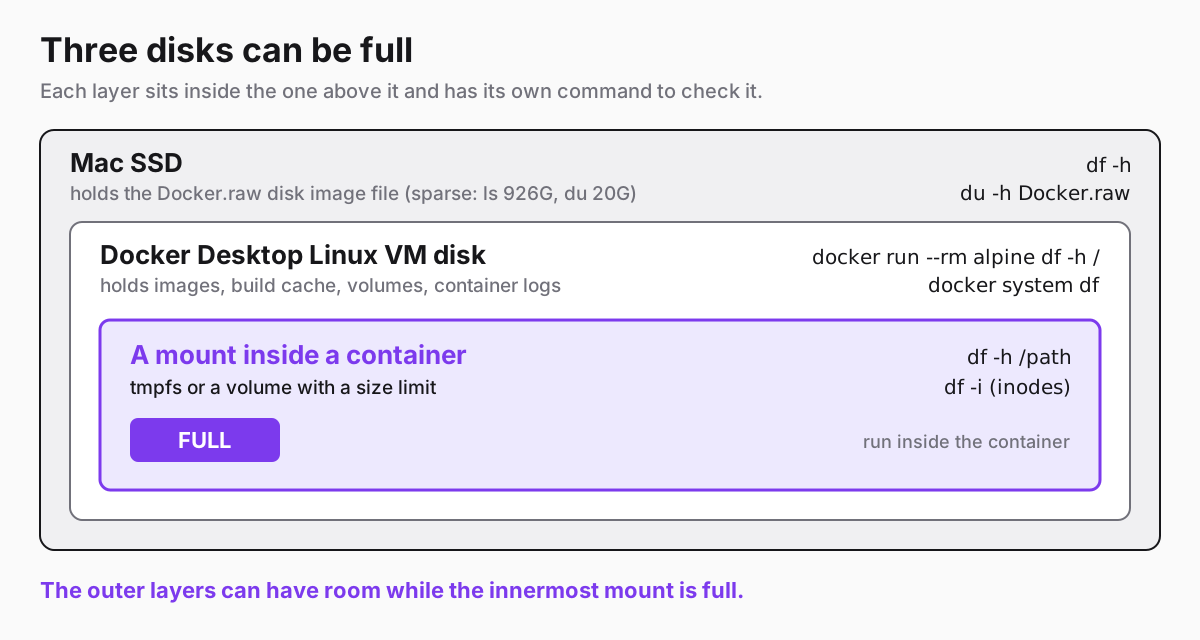
No space left on device is the same message for at least four different problems. A small mount inside a container can be full. A filesystem can run out of inodes while it still has free bytes. Docker's own disk can be full, which on a Mac means the Linux VM's disk. Or the disk under that can be full. The cleanup command that fixes one of these does nothing for the others, and the most aggressive one deletes data you may want.
So I reproduced the container-mount, inode and build cases on my own machine, and measured where the VM and Mac disks fill up, before rewriting this guide. I did not fill the VM disk or the Mac's SSD. Everything in a terminal block below is real output from an Apple M5 MacBook Pro running macOS 26.6.2, Docker Desktop 4.93.0, Docker Engine 29.8.1 and BuildKit v0.33.0. The Linux-host and settings sections are from Docker's documentation, and I've marked them that way.
Which disk is full?
| What you see | Which disk is full | First thing to try |
|---|---|---|
Error inside a running container, but df -h / in that container shows plenty of space |
A mount inside the container (tmpfs, a volume, a bind mount) | df -h on the path the app writes to, then make that mount bigger (tmpfs size counts against the container's memory) |
df -h shows free space, df -i shows IUse% at 100% |
Inodes, not bytes | Delete many small files. Freeing big files won't help |
Error during docker build in a RUN step |
The build's scratch space or the engine's disk | Read which path the failing command wrote to, then docker system df |
docker pull, build or run fail everywhere, and docker system df shows large RECLAIMABLE numbers |
The engine's disk (/var/lib/docker and /var/lib/containerd on Linux, the VM disk on Docker Desktop) |
The cleanup ladder below, starting at the top |
docker system df looks small but the disk is still full |
Container logs, which docker system df does not count |
Check log sizes, then cap them with max-size |
| Docker Desktop on a Mac, and the Mac itself is low on space | Your Mac's SSD, where the VM disk image lives | df -h on the Mac. Docker cleanup frees VM space first, and the Mac may not get it back right away |
A full mount inside the container
The simplest version is a container writing more than its mount can hold. I gave a container a 20 MB tmpfs at /data and wrote 50 MB into it:
$ docker run --rm --tmpfs /data:size=20m alpine sh -c 'df -h /data; dd if=/dev/zero of=/data/f bs=1M count=50; echo dd_exit=$?; df -h /data /'
Filesystem                Size      Used Available Use% Mounted on
tmpfs                    20.0M         0     20.0M   0% /data
dd: error writing '/data/f': No space left on device
21+0 records in
20+0 records out
20971520 bytes (20.0MB) copied, 0.005162 seconds, 3.8GB/s
dd_exit=1
Filesystem                Size      Used Available Use% Mounted on
tmpfs                    20.0M     20.0M         0 100% /data
overlay                 910.7G     19.4G    844.9G   2% /
Look at the last line. The container's root filesystem had 844.9 GB free at the moment the write failed. If you only run df -h /, this case looks impossible. Run df -h on the directory the application writes to. That might be a database's data directory, /tmp, or an upload folder.
The same thing happens with a named volume that has a size limit. I created one with the local driver backed by tmpfs:
docker volume create --driver local --opt type=tmpfs --opt device=tmpfs --opt o=size=20m smallvol
I got the same dd: error writing '/var/lib/data/big': No space left on device at 20 MB. One thing I noticed: when I mounted that volume in a second container, it was empty again. A tmpfs-backed volume lives in memory, so it doesn't keep data after the last container using it stops. It's useful for reproducing this error, and you shouldn't put a real database on one.
Out of inodes, with free bytes left
Every file uses one inode, and some filesystems have a fixed number of them. Here, the tmpfs had 20 MB of space and 200 inodes:
$ docker run --rm --tmpfs /data:size=20m,nr_inodes=200 alpine sh -c 'i=0; while touch /data/f$i 2>/tmp/err; do i=$((i+1)); done; echo created=$i; cat /tmp/err; df -h /data; df -i /data'
created=199
touch: /data/f199: No space left on device
Filesystem                Size      Used Available Use% Mounted on
tmpfs                    20.0M         0     20.0M   0% /data
Filesystem              Inodes      Used Available Use% Mounted on
tmpfs                      200       200         0 100% /data
The error text is identical, and the disk is 0% used. df -i is what tells this case apart. Removing one large file frees one inode. To fix it you need to remove a lot of small files: caches, session files, or old image layers on the engine's disk.
For comparison, the Docker Desktop VM's disk on my machine reported 60,710,912 inodes with 1% in use, so I was nowhere near this limit in practice.
During docker build
A RUN step can fail the same way. This Dockerfile gives one step a 16 MB scratch mount and writes 64 MB into it:
FROM alpine
RUN --mount=type=tmpfs,target=/scratch,size=16m \
    df -h /scratch && \
    dd if=/dev/zero of=/scratch/blob bs=1M count=64
#7 …
#7 0.057 tmpfs                    16.0M         0     16.0M   0% /scratch
#7 0.060 dd: error writing '/scratch/blob': No space left on device
#7 …
#7 ERROR: process "/bin/sh -c df -h /scratch &&     dd if=/dev/zero of=/scratch/blob bs=1M count=64" did not complete successfully: exit code: 1
…
ERROR: failed to build: failed to solve: process "/bin/sh -c df -h /scratch && ..." did not complete successfully: exit code: 1
In a real build the scratch space is usually the engine's own disk, not a small tmpfs. Either way, the error names the path that failed, here /scratch/blob. Read it before you delete anything. A failed write under /tmp during npm install and a failed layer extraction during docker pull point at different places.
Finding out which disk is full
Start with docker system df. This is what my machine showed before I created any test objects:
$ docker system df
TYPE            TOTAL     ACTIVE    SIZE      RECLAIMABLE
Images          11        5         11.67GB   2.834GB (24%)
Containers      6         4         167.4MB   40.96kB (0%)
Local Volumes   15        5         2.423GB   1.073GB (44%)
Build Cache     85        0         6.133GB   2.54GB
RECLAIMABLE is what a prune of that type could free. For volumes, that column is data you may still want, so treat it differently from the others.
Then check the engine's disk directly. On Docker Desktop that disk is inside a Linux VM, so the Mac's df doesn't show it. A throwaway container does:
$ docker run --rm alpine df -h /
Filesystem                Size      Used Available Use% Mounted on
overlay                 910.7G     20.1G    844.3G   2% /
Then check the file on the Mac that holds that disk. It's a sparse file, so ls and du disagree:
$ ls -lh ~/Library/Containers/com.docker.docker/Data/vms/0/data/Docker.raw
-rw-r--r--@ 1 you      staff   926G Oct  4 20:27 ~/Library/Containers/com.docker.docker/Data/vms/0/data/Docker.raw
$ du -h ~/Library/Containers/com.docker.docker/Data/vms/0/data/Docker.raw
 20G	~/Library/Containers/com.docker.docker/Data/vms/0/data/Docker.raw
$ df -h /System/Volumes/Data
Filesystem      Size    Used   Avail Capacity iused ifree %iused  Mounted on
/dev/disk3s5   926Gi   615Gi   279Gi    69%    5.3M  2.9G    0%   /System/Volumes/Data
926 GB is the maximum the image may grow to. 20 GB is what it actually takes on the SSD. Docker's Mac FAQ warns that some tools report the maximum size instead of the real one. I never changed Docker Desktop's disk setting ("Disk usage limit" in Settings, called "Disk image size" in the Mac FAQ), and on this install the maximum equals the size of the Mac's whole SSD. With a limit that large, the Mac's own disk will fill before the VM's does, so df -h on the Mac belongs in the first round of checks.
Where the bytes actually are. On this install Docker uses the containerd image store, the default for new installs of Engine 29. Inside the VM, I measured the directories (read-only) with a privileged helper container:
$ du -xsh /var/lib/docker/* /var/lib/desktop-containerd | sort -h    # inside the VM, trimmed
1.9M	/var/lib/docker/buildkit
995M	/var/lib/docker/containers
2.5G	/var/lib/docker/volumes
16G	/var/lib/desktop-containerd
Images and their layers sit in the containerd directory, and volumes and container logs stay under /var/lib/docker. That matches the daemon docs. The containerd image store page adds that this store keeps images both compressed and uncompressed, so it uses more disk than the old drivers. My 60 MB test image showed that: docker image ls listed it at 134 MB of disk usage against 64.2 MB of content.
The logs that docker system df doesn't count
Look at that 995M /var/lib/docker/containers again (including about 28 MB of my test logs). docker system df put all containers at 167.4 MB. The difference is logs. With the default json-file driver, everything a container prints to stdout is appended to a file whose size defaults to unlimited.
I checked my own containers and found that 966 MB of the 995 MB came from one service that was stuck in a crash loop. It had restarted more than 4,000 times, appending to the same log file each time, with no size limit. No prune command would have found it.
To reproduce it on purpose, I ran a container that prints 200,000 lines:
$ docker inspect --format '{{.LogPath}}' lab-logger
/var/lib/docker/containers/eca917cb…/eca917cb…-json.log
$ ls -lh <that path>          # inside the VM
-rw-r----- 1 root root 27M Oct  4 11:27 eca917cb…-json.log
$ docker ps -a --filter name=lab-logger --format '{{.Names}} {{.Size}}'
lab-logger 4.1kB (virtual 9.33MB)
27 MB on disk, and the container's SIZE column reports 4.1 kB. The same container with a size cap:
$ docker run -d --log-opt max-size=1m --log-opt max-file=2 --name lab-logger-capped alpine sh -c '…same loop…'
$ ls -lh <its log directory>   # inside the VM
-rw-r----- 1 root root 441K Oct  4 11:27 5270eded…-json.log
-rw-r----- 1 root root 977K Oct  4 11:27 5270eded…-json.log.1
It wrote the same 200,000 lines and stayed under 1.5 MB on disk. To make that the default, set it in daemon.json (Docker Desktop: Settings → Docker Engine):
{ "log-driver": "json-file", "log-opts": { "max-size": "10m", "max-file": "3" } }
Changing daemon.json needs a daemon restart. On Docker Desktop that means restarting the Docker engine, which stops your running containers, so check that they are back up afterwards. According to the docs, the new default applies only to containers created after the change. Existing containers keep their old logging setup until you recreate them, which with Compose means docker compose up -d --force-recreate.
The cleanup ladder, with real numbers
Go from least destructive to most, and run docker system df after each step. I ran each step on test objects I'd made for this (labelled, and filtered with --filter label=… so nothing else on the machine was touched). For your own cleanup, drop the filter. The numbers are the space reclaimed, as reported by each prune command:
| Step | Command | What it deletes | What happened here |
|---|---|---|---|
| 1 | docker container prune |
Stopped containers and their writable layers | 2 stopped containers, 100 MB reclaimed |
| 2 | docker image prune |
Dangling (untagged) images | 0 B, see below |
| 3 | docker image prune -a |
Every image no container uses. You'll pull or build them again | 2 images, 120 MB reclaimed, but see the note on build cache below |
| 4 | docker builder prune |
Build cache. -a also removes internal and frontend records |
418 MB across 10 records |
| 5 | docker volume prune |
Unused anonymous volumes only (Engine 23.0 and later; older engines also removed unused named volumes) | 0 B. My test volumes were named |
| 6 | docker volume prune -a |
Unused named volumes too. This is where databases get deleted | See below |
docker system prune runs steps 1, 2 and 4 together and also removes unused networks. Its reference says "Build cache is always eligible for pruning with this command". Adding -a includes step 3, and --volumes adds anonymous volumes.
Four things did not go the way older guides suggest:
Rebuilding over a tag left no dangling image. I built lab-big:latest twice. With the classic storage driver the first build would become <none>:<none> (older guides describe this; I did not test the classic overlay2 store). Here it disappeared from docker image ls completely, and step 2 found nothing. On the containerd image store, look at build cache instead.
Deleting images increased reclaimable build cache. After step 3, docker system df showed Images SIZE down about 240 MB (11.91 to 11.67 GB) while Build Cache RECLAIMABLE rose by about the same (2.714 to 2.954 GB). The layers were still held by the cache, so little real disk likely came back until step 4. I didn't measure that. If you prune images and the disk doesn't change, this is a likely reason.
docker builder prune has no label filter. It filters by id, description, type, until and a few others (reference). I removed my own records one by one with --filter id=…. Two of them, the Dockerfile frontend and a shared base layer, were only removed with -a. For a build server, docker builder prune --max-used-space 10gb is a better habit than wiping the cache: it deletes the least recently used records until the cache fits.
docker volume prune -a skipped one of my named volumes. It removed an ordinary named volume, and it left the tmpfs-backed one alone even though no container used it. I created a second volume with mount options to check, and it was skipped too. Moby's source explains it: prune "intentionally skips volumes with mount options", because deleting them reclaims nothing. The same goes for volumes that docker run -v name:/path creates automatically: they don't get the container's labels, so a label filter can't see them. I deleted the three by name with docker volume rm (lab-datavol, lab-smallvol and lab-tmpfsprobe).
Logs are the step that isn't on the ladder. Removing a container deletes its log file. A capped log won't grow back.
On a Linux host (from the docs, not reproduced here)
I didn't test this on a Linux server, so this section follows Docker's documentation. On Linux, the daemon stores data in /var/lib/docker. With the containerd image store, image contents and container snapshots go to /var/lib/containerd instead. To see which directory is growing:
sudo du -xsh /var/lib/docker/* /var/lib/containerd 2>/dev/null | sort -h
df -h /var/lib/docker /var/lib/containerd
df -i /var/lib/docker
If the partition is simply too small, the data-root option in /etc/docker/daemon.json moves Docker's data directory. Setting { "data-root": "/mnt/docker-data" } and restarting the daemon is the documented part. The surrounding steps are general practice, not from that page: stop Docker, copy the directory with rsync -aHAX so ownership and extended attributes are preserved, start Docker with the new setting, and check that your containers come back before deleting the old copy. The same page warns that data-root does not move /var/lib/containerd, so on the containerd store moving data-root alone may free much less than you expect. Moving the snapshotter data takes containerd's own configuration. The storage driver docs explain how image layers and writable layers are laid out.
Docker Desktop's disk limit (from the docs, not changed here)
Docker Desktop has a Disk usage limit under Settings → Resources → Advanced (the Mac FAQ calls the same control "Disk image size"; settings reference). If the VM disk itself is full, raising it is the fix. Be careful lowering it: the Mac FAQ says that "when you reduce the maximum size, the current disk image file is deleted, and therefore, all containers and images are lost." I didn't change mine.
What I'd do next time
- Read the path in the error message.
df -handdf -ion that path, inside the container.docker system df, thendocker run --rm alpine df -h /, thendf -hon the host.- If the numbers don't add up, look at
/var/lib/docker/containersfor logs. - Climb the cleanup ladder and stop as soon as you have enough space. Before step 6, run
docker volume lsand check what each volume holds.
Methodology
- Machine: Apple M5 MacBook Pro, 32 GB, macOS 26.6.2. Docker Desktop 4.93.0, Engine 29.8.1 (API 1.56), buildx v0.37.1, BuildKit v0.33.0, containerd image store (
overlayfssnapshotter), defaultjson-filelogging. Run on 2026-10-04.- Reproduced: ENOSPC on a size-limited tmpfs mount and on a tmpfs-backed named volume, inode exhaustion (
nr_inodes=200), ENOSPC in aRUN --mount=type=tmpfsbuild step, json-file log growth with and withoutmax-size, and the cleanup ladder on test objects (2 stopped containers with 50 MB each, three 60 MB image builds, one 30 MB volume, two log containers). Measured, not reproduced: where the VM disk and the Mac's SSD fill up (Docker.rawsize,dfinside the VM and on the Mac). I did not fill the VM disk or the Mac's SSD.- Safety: this is my working Docker install. Every test object had the
automatone.lab=1label or alab-name. Prunes used that label filter, build cache was pruned by record ID, and unlabelled test volumes were removed by name. After cleanup,docker system dfmatched the starting numbers on every row, and my own containers' status was unchanged. Directory sizes inside the VM were read withdufrom a privileged helper container. Nothing was written there.- Output editing: commands are shown without the test label and name flags. Long container IDs and one build error line are shortened with
…, some context lines in the build log were trimmed (marked with…), home-directory paths are written as~, and my macOS username in onelslisting is replaced withyou. Nothing else was changed.- From documentation only: the Linux host layout, moving
data-root(the copy steps are general practice), and Docker Desktop's disk limit setting. Windows, WSL2 and the classic overlay2 image store were not tested.- Anonymised: names of my own containers, images and volumes are left out. The 966 MB log figure is from one of my own services.
References
- docker system df, docker system prune, docker volume prune, docker buildx prune, docker buildx du
- Prune unused Docker objects, Build garbage collection
- JSON File logging driver, Configure logging drivers
- Docker daemon configuration and data directory, containerd image store, Storage drivers, tmpfs mounts
- Docker Desktop settings, Docker Desktop for Mac FAQ
- Moby volume service source,
Prune